CASE STUDY

A Field App for Drivers and Surveyors

We built Fredi Furniture Industries a dedicated mobile app for its field crews: delivery drivers and surveyors who receive the daily work schedule, navigate to the customer, collect a signature and photos, and report back to the office in real time, with no paperwork and no chain of phone calls.

Fredi Furniture Industries
Furniture, delivery and surveying
Delivery drivers and surveyors
Mobile app in the browser
2Field roles: driver and surveyor
3Task types: delivery, measuring, both
4Closing actions per stop: status, photo, signature, notes

01. Background and problemThe field was the least connected link

Fredi runs delivery and surveying crews who spend most of the day on the road. The office scheduled orders in a calendar, but what happened between stops came back through phone calls, messages and paper: who had already received their order, who was not home, which measurement was taken and where the signature was.

What was missing:

  • A clear schedule per worker: every driver and surveyor should see only their own stops, by day and time window, without searching through other people’s orders.
  • One reporting format: status, notes, photos and signature in a single place, so the office never has to reconstruct what happened.
  • Measurements that return as data: dimensions of cabinets and items must be recorded per item and stored against the order.
  • Usable in field conditions: one screen, one hand, large buttons and constant movement.
02. Our approachOne app, two roles

We designed the app around the worker’s day rather than around the system: sign in, see today’s stops, drive, report, and move to the next one. At login the system recognises the worker’s role and routes drivers and surveyors to the app, while office staff land on the dashboard.

The app is part of the same management platform (Fredi’s ERP system), so there is no syncing between systems: what the driver reports is what the office sees, at the same moment.

03. Login and the daily routeFrom login to today’s stops

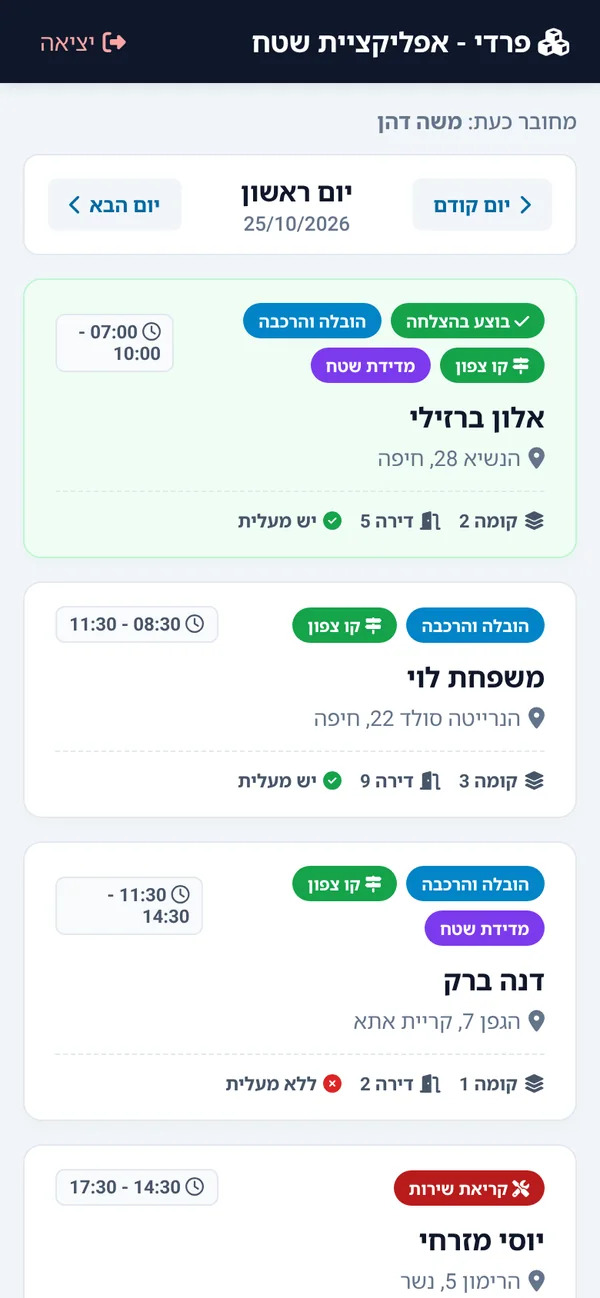
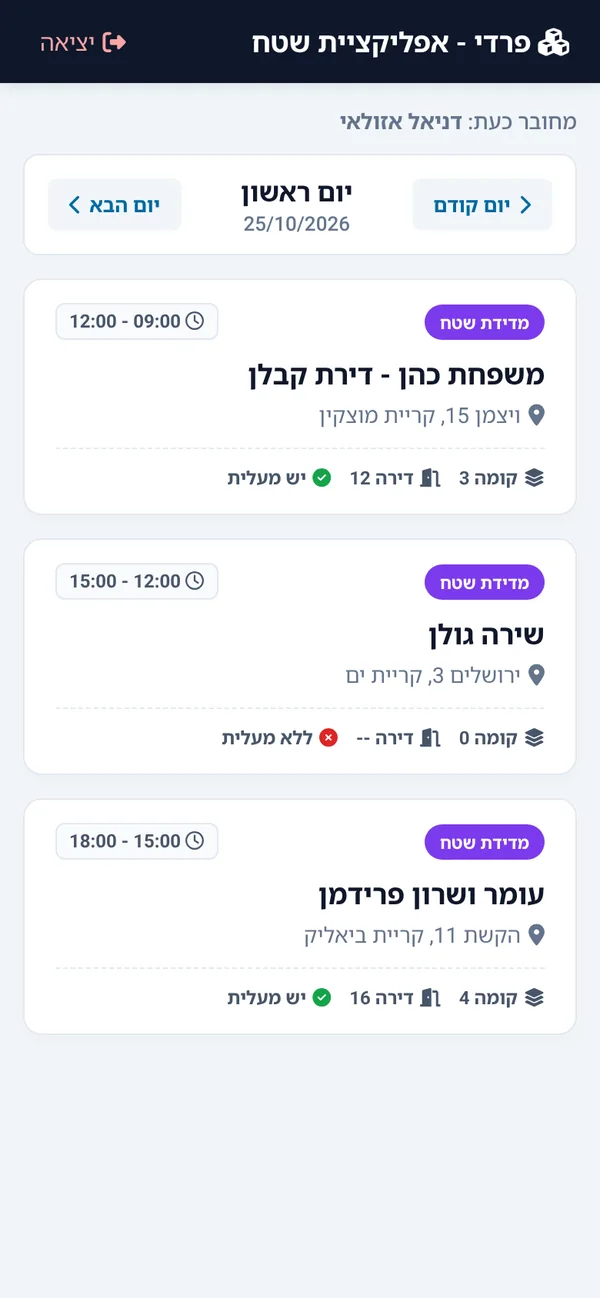
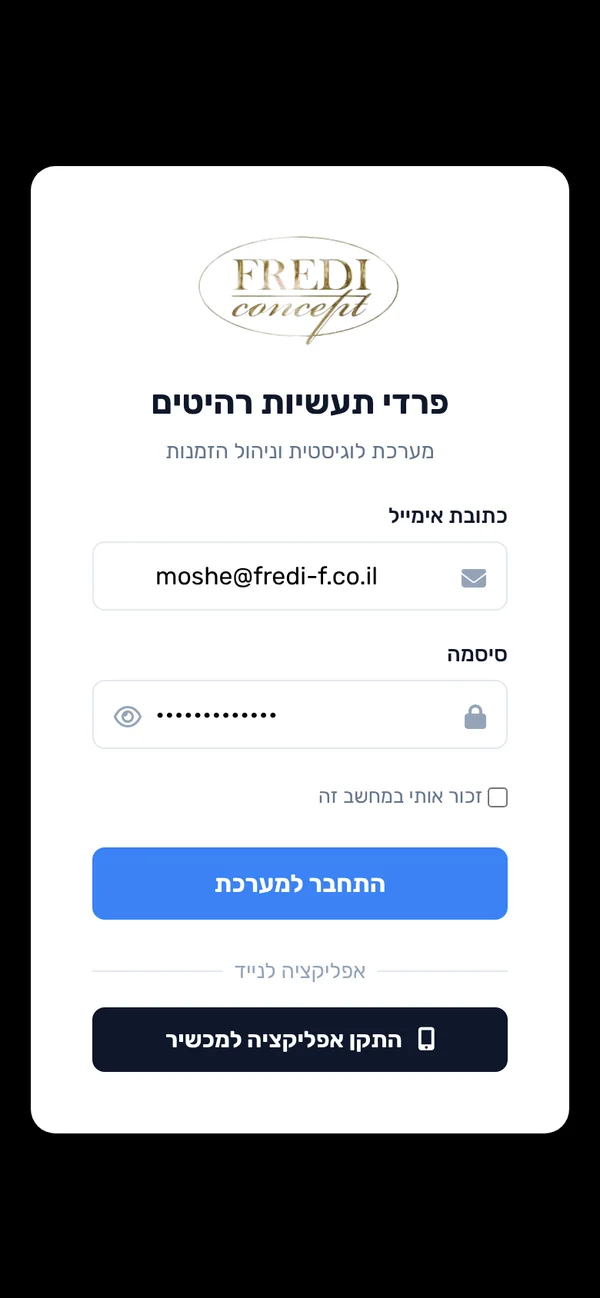
The login screen is simple and carries Fredi’s branding: email, password and an option to remember the device. Right after signing in, the worker’s schedule for that day appears.

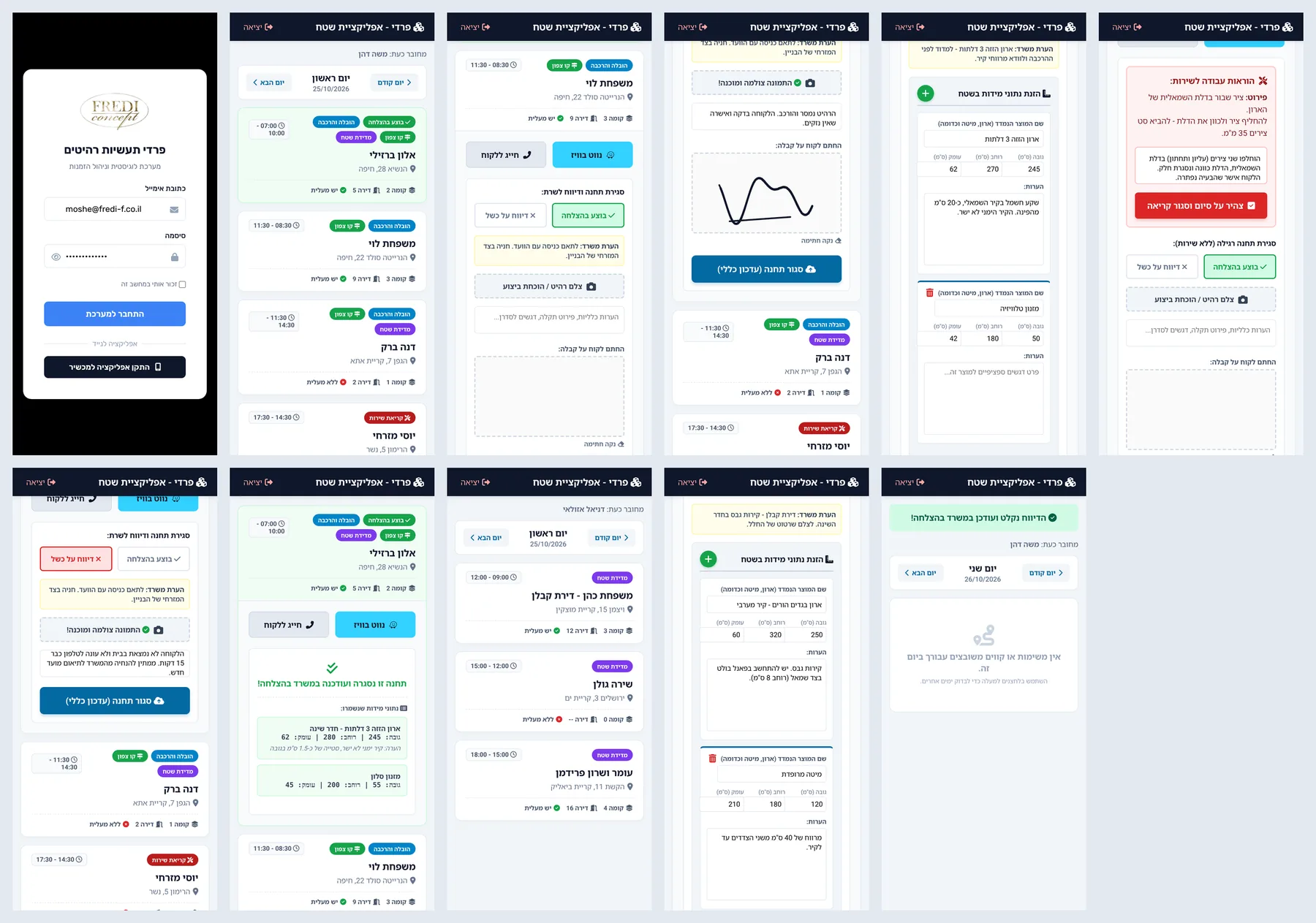
Each stop is a card showing the time window, customer name, address, task type and arrival details such as floor, elevator and item count. Coloured tags separate delivery, measuring and combined tasks and show the delivery line, and stops that were already handled are marked green.

  • Day navigation: a quick jump to the previous or next day, to plan ahead or check what was done.
  • Role-based view: drivers see deliveries, surveyors see measuring tasks, and both see only what is assigned to them.
  • Clear order: stops are sorted by time, so it is always obvious what comes next.

04. The delivery stopFrom navigation to the customer’s signature

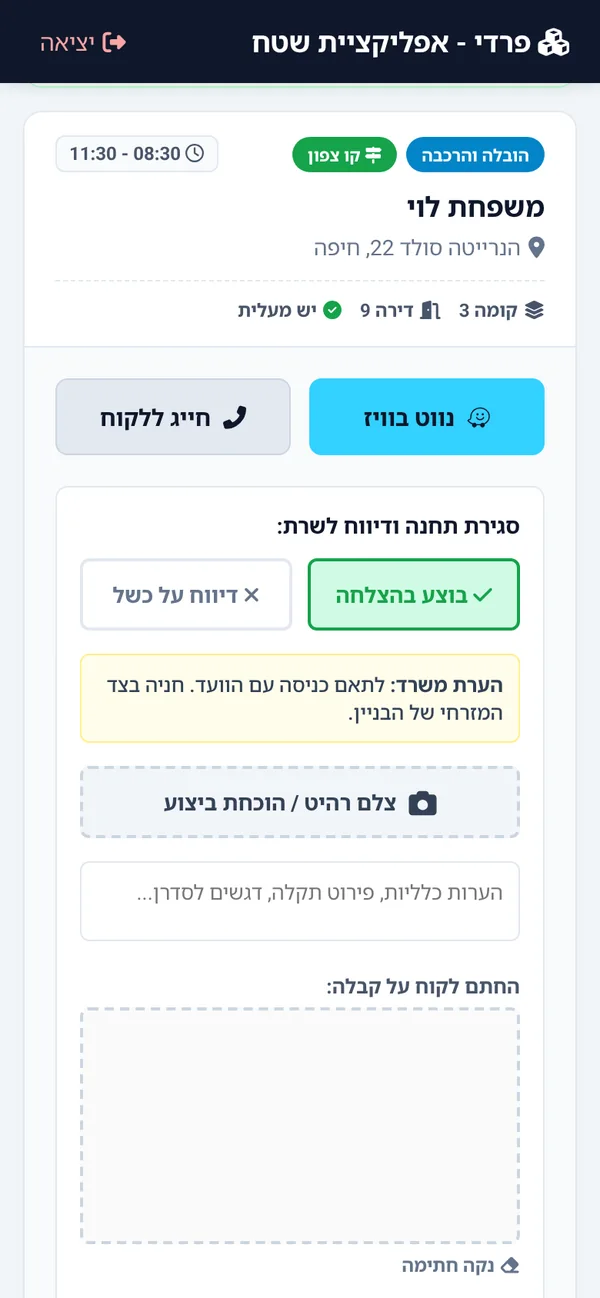
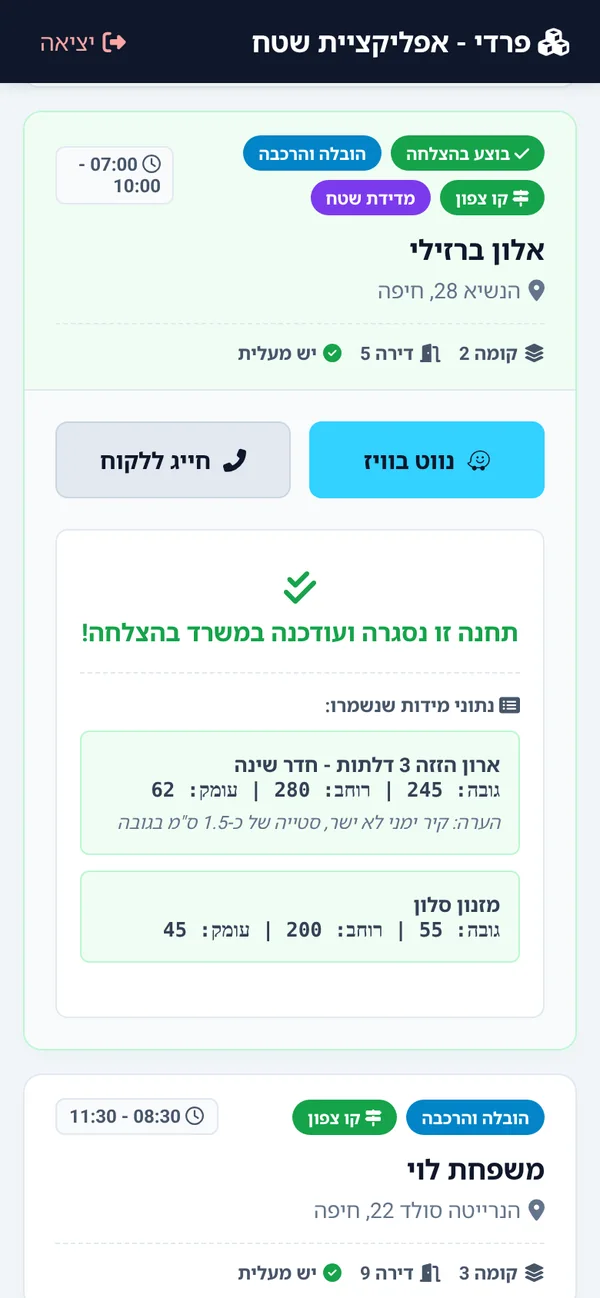
Tapping a card opens the stop. At the top are two large buttons: navigate to the customer’s address in Waze, and call the customer in one tap. Below them are the office’s notes for the stop, such as access instructions or special requests.

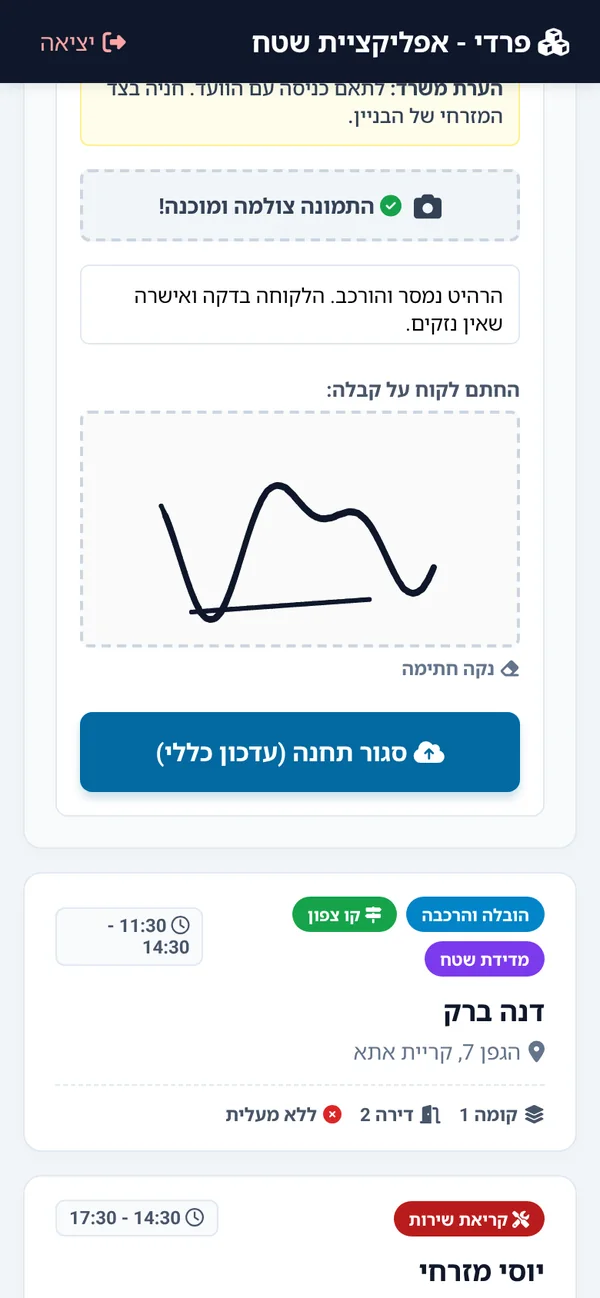
When finished, the worker closes the stop with one short form:

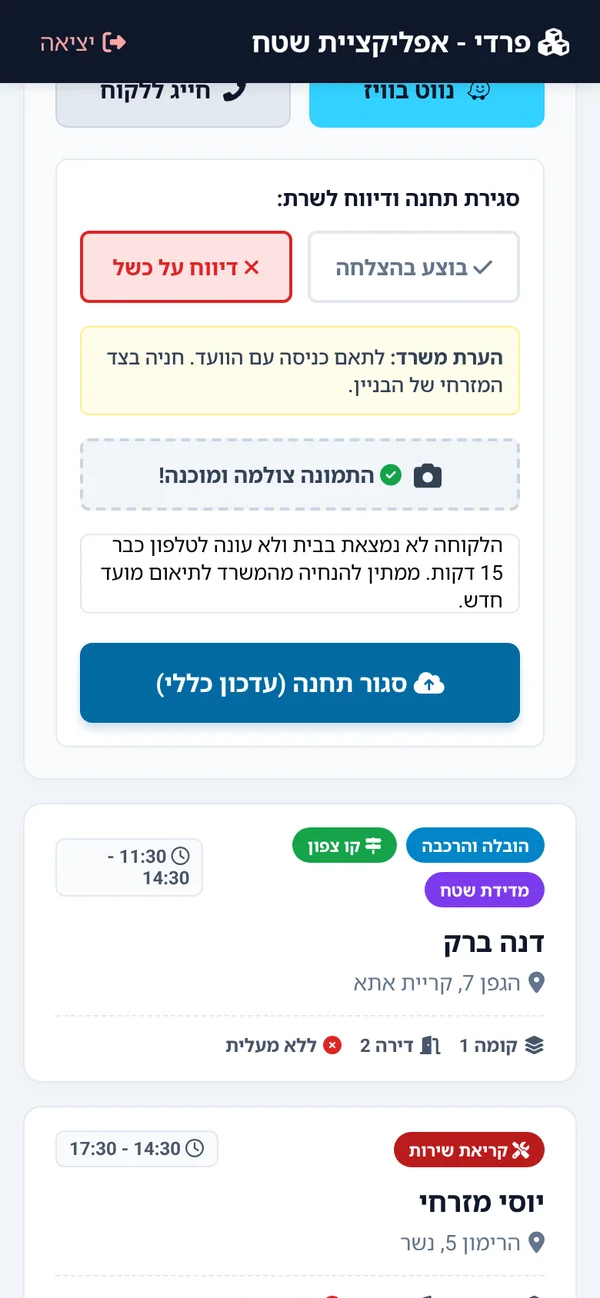
  • Status: completed successfully or not completed, with a reason when it fails.
  • Photo: a shot from the phone camera as proof of delivery or a record of the site’s condition.
  • Notes: a free field for anything the office needs to know.
  • Customer signature: the customer signs on the screen with a finger, and the signature is stored on the order as an image, with no paper form.

05. Measurements in the fieldDimensions recorded item by item

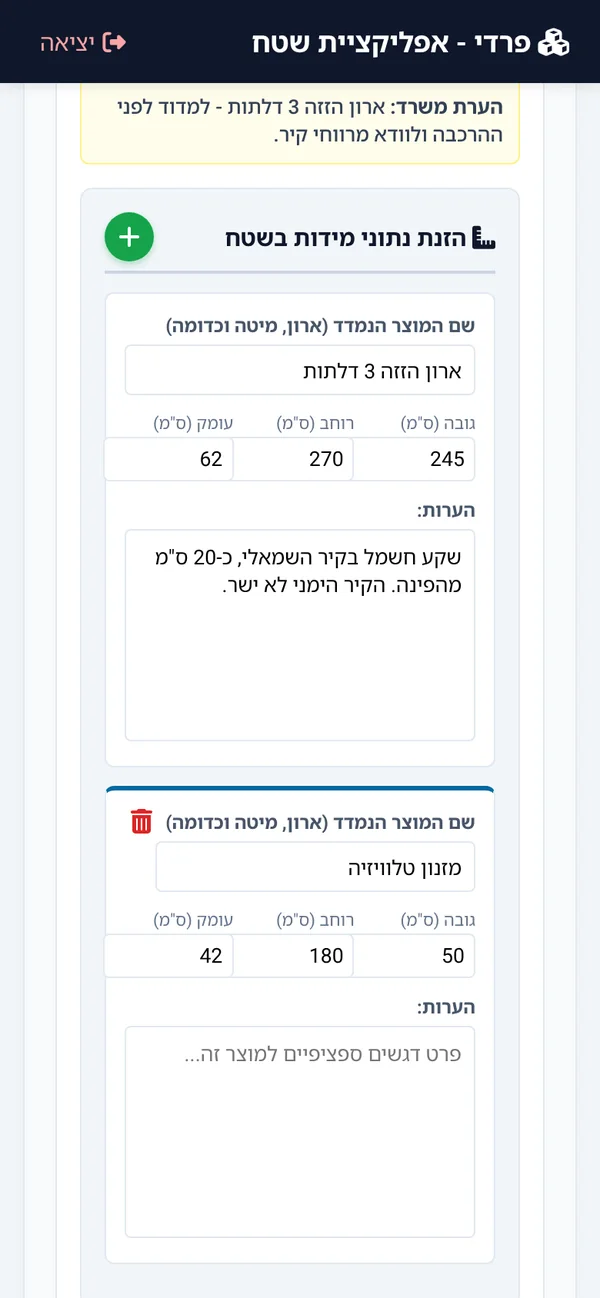
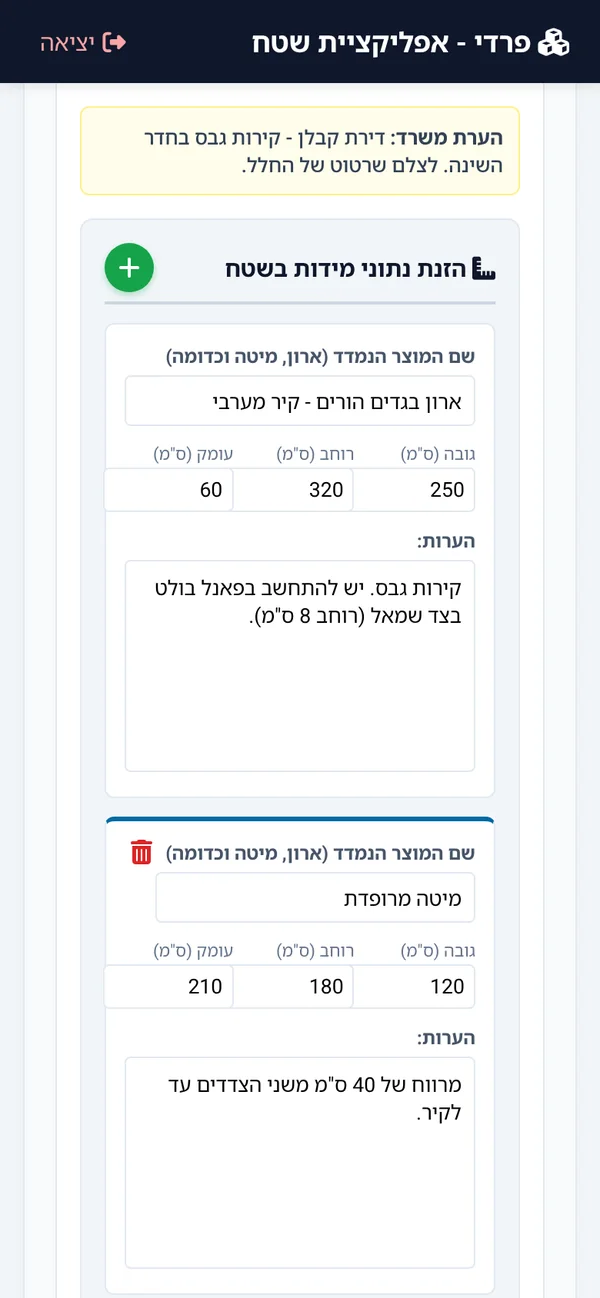
When a stop includes measuring, or when a task combines delivery and measuring, the app shows a dynamic measurement form. For each item the worker records a name or location, height, width and depth in centimetres, plus notes, and can add or remove rows as needed.

The result is structured data rather than a photo of a sheet: the office can continue from there to a quote, production or installation without retyping. After saving, the stop is marked complete and the saved measurements appear on the card for later review.

06. Service calls and failuresWhen something does not go to plan

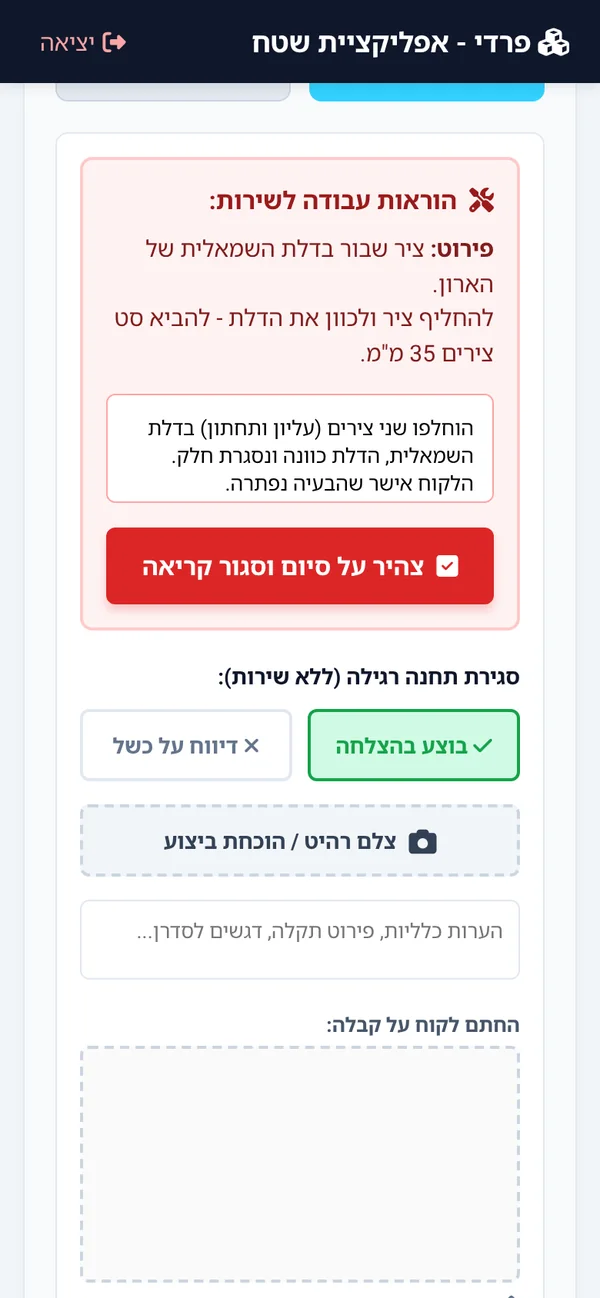
Not every stop ends well. If the customer is not home or something is wrong, the worker marks the stop as not completed and describes why, and the report reaches the office as an alert that needs attention. In the other direction, service calls reach the worker with detailed work instructions from the office and a dedicated closing form for recording what was done.

  • Office instructions inside the card: the fault and the required work are highlighted so they cannot be missed.
  • Failure reports with a reason: every stop left incomplete reaches the office with an explanation and can be rescheduled.
  • Closing the call on site: after the repair the worker records a photo and notes and closes the call from the field.

07. The surveyor’s routeMeasuring as a task of its own

A surveyor gets a task list of their own that includes only measuring stops: time window, address and arrival details. The same card, the same navigation and the same call button, but the form that opens is the measurement form. When done, the surveyor closes the stop and the order moves on to its next step in the office.

Reusing the same components for both roles avoided duplicate development and keeps the experience identical: someone who changes roles does not have to learn a new app.

08. Report sent to the officeThe loop closes in real time

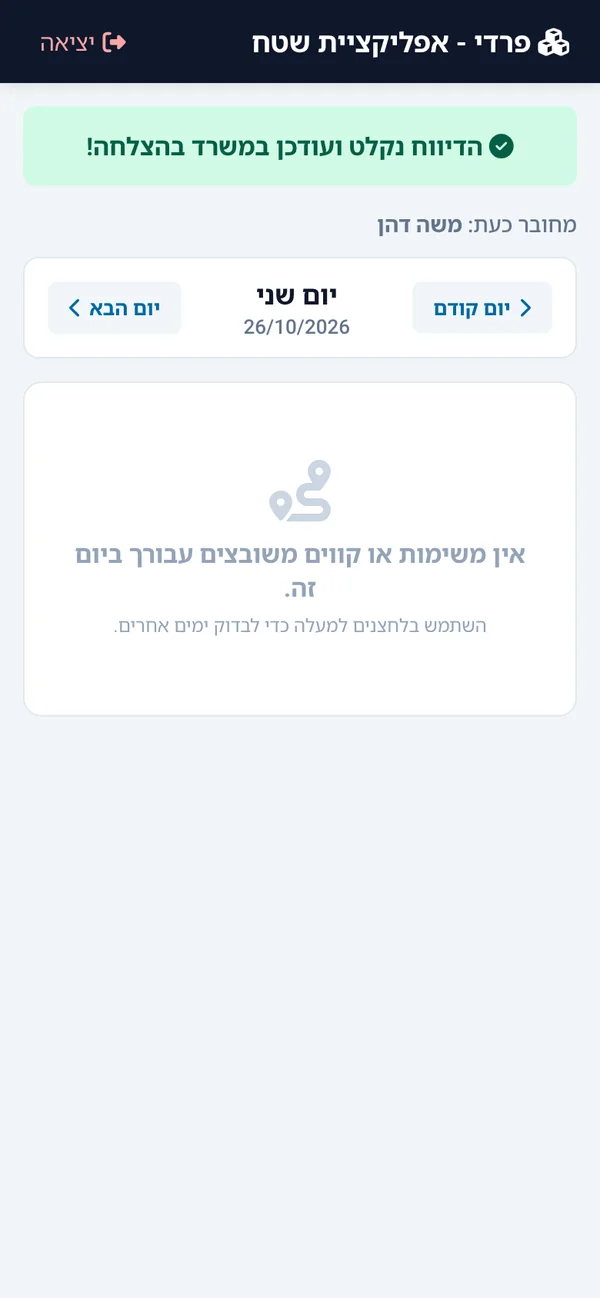
As soon as a report is sent, a clear green confirmation appears and the stop leaves the open task list. When all of the day’s stops are closed, the app shows an empty day instead of a list and lets the worker move to another day.

On the office side, every report is recorded in the order timeline of the management system: who updated it, when and what changed. That makes it easy to answer a customer who calls and to know what happened on any order, without digging through calls and messages.

09. Behind the scenesEngineering decisions that matter in the field

What the worker sees is a simple screen. What lets them work without friction is a series of decisions made under the surface:

  • Server-side permissions: the role is checked on the server on every request, not only in the interface. Field workers cannot reach office screens, and the reverse.
  • Photos and signatures tied to the order: files uploaded from the device are stored linked to the order and the stop, so they can be retrieved whenever proof is needed.
  • An interface built mobile-first: large touch targets and readable text, because most of the work is done one-handed and on the move.
  • Connected to automatic orders: orders from e-commerce sites enter the system through webhooks and are scheduled from there into the field work schedule.
  • Full audit trail: every action is recorded in the order timeline, giving one reliable picture of what happened.
The app closed the gap between the office and the field: workers see what they need to do, report in a few taps, and the office sees the result immediately.
The result in the field

What does a field app for drivers and surveyors include?

A field app is a mobile interface that links crews who work on the move with the office that manages them. At Fredi it brings the daily schedule, navigation and calling, status reports, photos, customer signatures, measurements and service calls into one place. At login the system recognises the worker’s role, driver or surveyor, and shows only the stops assigned to them, by day and time window. A project like this starts by mapping the worker’s real day and only then choosing screens: what they need to see, what they must report and what can be left to the office. That is how we approach all of our app development and advanced systems development.

The app is part of the same management system that runs the office; see the Fredi ERP system. That means there is no synchronisation between systems: what the driver reports is what the office sees, at the same moment, and orders that arrive from online stores are assigned straight into the field schedule. Workers open the app in the phone’s browser and sign in with an email and password, with no app store and no version updates to install.

How is a stop closed in the field, and what is saved against the order?

Every stop opens from a card showing a time window, customer, address, task type and arrival details such as floor, apartment and item count. At the top of the stop are two large buttons, navigation with Waze and calling the customer, and below them the office notes. The worker closes the stop with one short form: a success or failure status with a reason, a photo from the camera, free notes and the customer’s signature drawn on the screen. The signature and photo are saved linked to the order and the stop, so they can be pulled up when proof of delivery is needed, without a sheet of paper.

When the task includes a measurement, the app shows a dynamic measurements form: for each item the worker records a name or location, height, width and depth in centimetres, and notes, and can add and remove rows. This saves structured data rather than a photo of a page, and the office carries on from there to a quote, production or installation without retyping. Every action is logged on the order timeline: who updated, when and what changed. Systems like this rely on system integrations that are planned in advance.

What happens when a stop fails, and how is the data protected?

Not every stop ends in success. If the customer is not home, the worker marks the stop as not completed and describes the reason; the report reaches the office as an alert that needs handling, and the stop can be reassigned. In the other direction, service calls reach the worker with detailed work instructions from the office and a dedicated closing form for recording what was done. After a report is sent, a clear confirmation appears and the stop leaves the list of open tasks.

Beneath the simple interface sit several engineering decisions: permissions are checked on the server with every request, not only in the interface, so a field worker cannot reach office screens and vice versa. Files uploaded from the device are saved linked to the order, and the interface is built mobile-first, with large touch targets, because most of the work is done with one hand and on the move. A system like this needs properly managed hosting, security and maintenance. For a first estimate of an app for your teams you can use the cost calculator, or book a scoping call. Another solution for field teams is Just-In, an attendance system we built.

Further reading

// FAQ

Frequently asked questions

What app was built for Fredi Furniture Industries?
A mobile app for delivery drivers and surveyors that shows the daily schedule, offers one-tap navigation and calling, and closes each stop with a structured report covering status, photo, notes, customer signature and measurements. The app is part of Fredi’s management system, so every report reaches the office immediately.
Do field workers need to download an app from a store?
No. The app opens in the phone’s browser and workers sign in with an email and password, so they can start working without an app store and without waiting for version updates.
What data is collected at each stop?
Status (success, or failure with a reason), a photo, free notes, the customer’s signature on the screen and, for measurement tasks, dimensions for each item: height, width, depth and notes. Everything is saved against the order and logged on its timeline.
How does the app tell a driver from a surveyor?
At login the system recognises the worker’s role. A driver sees deliveries, a surveyor sees measurements, and both see only the stops assigned to them. Permissions are checked on the server with every request, not only in the interface, so a field worker cannot reach the office screens.
What happens when the customer is not home or there is a problem?
The worker marks the stop as not completed and describes the reason. The report reaches the office as an alert that needs handling, and the stop can be reassigned. Service calls reach the worker with work instructions from the office, and they are closed from the field with a photo and notes.
How are signatures and photos stored, and why does it matter?
The customer’s signature is saved on the order as an image, and files uploaded from the device are linked to the order and the stop. This makes it possible to pull up proof of delivery or a record of the condition at any moment, without paper and without searching through calls and messages.
Can the app be connected to orders from an online store?
Yes. At Fredi, orders from online stores are received by the system through webhooks and then assigned to the field schedule. In another project we define in the scoping call which existing systems need connecting, and how.
How do you start a field app project?
With a scoping call in which we learn what the team’s working day looks like, what data the office needs from the field and which existing systems need connecting. From there we define roles, screens and actions, and build an app that fits the process and not the other way round. You can reach us on WhatsApp or through the contact page.

Need a field app for your crews?

Tell us what your crew’s working day looks like and we will come back with a tailored proposal.